

80% of social media videos are watched on mute. If you are not adding captions, you are invisible to most of your audience.
But auto caption tools in 2026 are better than ever. You can add captions to any video in seconds, not hours.
I compared the five best options so you do not have to.
The 5 Best Auto Caption Tools in 2026
1. GhostShorts
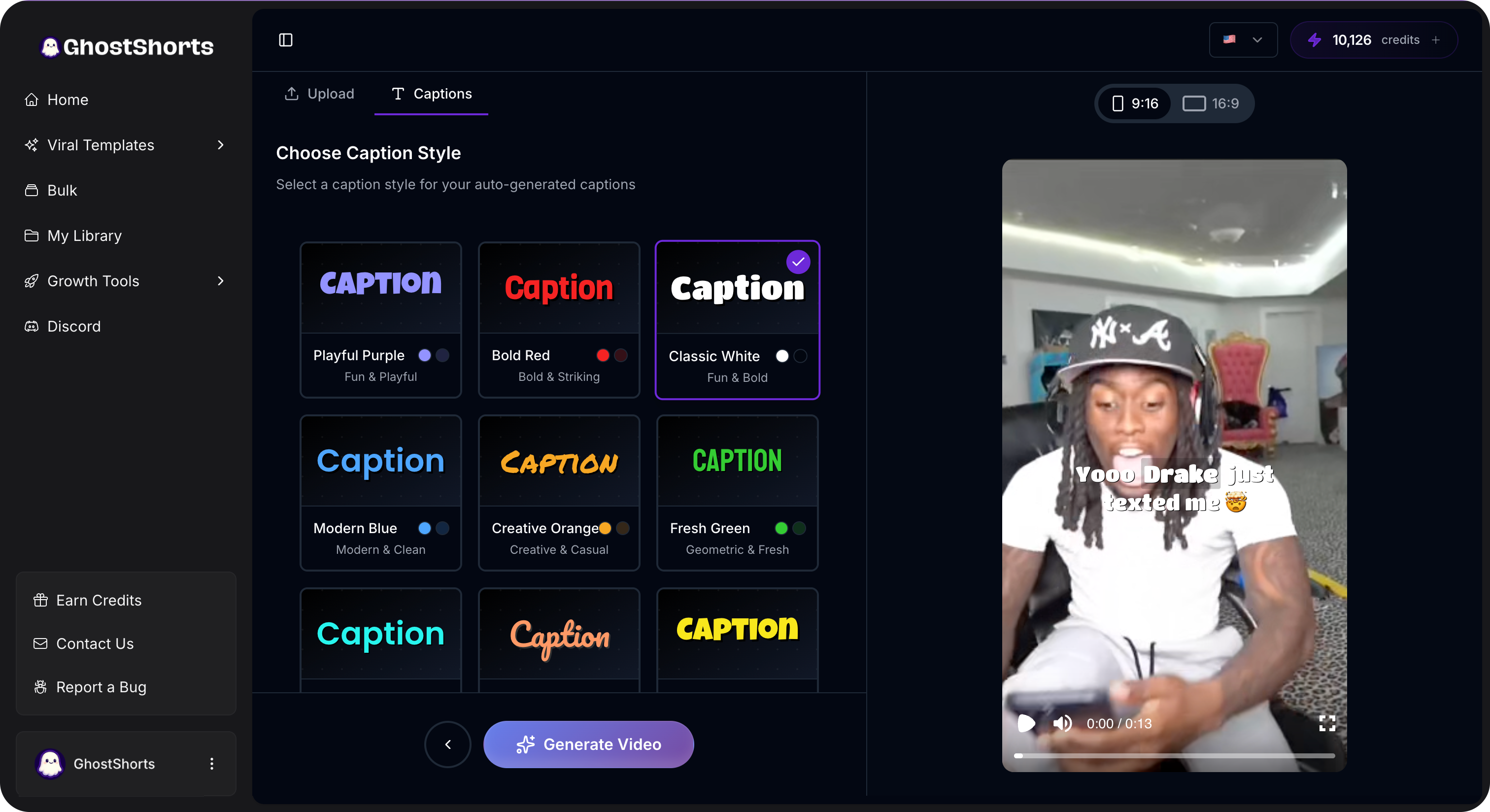
This is where things get interesting. GhostShorts auto captions do not treat captioning as a separate step. Captions are baked right into the video creation flow.
You never have to export a video, upload it somewhere else, add captions, then re-export. It all happens in one place.
How it works:
- Create or upload your video in GhostShorts
- Captions generate automatically as part of the process
- Pick from animated styles - word-by-word highlight, pop-up, karaoke, and more
- Customize colors, fonts, size, and position
- Fix any transcription errors right in the editor
- Export with captions already embedded
Accuracy: 96-98% for clear English. Multiple languages supported.
Speed: Seconds. No separate upload or processing step.
Pricing: Included with all plans. Check the pricing page for details.
Best for: Creators who want captions without adding extra steps to their workflow. Especially useful if you are already using split screen or free tools for content creation.
2. CapCut
Still the go-to free option. CapCut's auto captions have gotten a lot better over the past year.
How it works:
- Import your video
- Tap Text, then Auto Captions
- Select language and generate
- Wait 30-60 seconds for processing
- Edit errors manually
- Style and export
Accuracy: 93-96%. Drops with background music or noise.
Speed: 30-90 seconds for transcription, plus 5-15 minutes of manual editing.
Pricing: Free. CapCut Pro at $7.99/month for extra styles.
Best for: Creators on zero budget who mostly edit on mobile.
The catch: Accuracy is lower so you spend more time fixing errors. Free tier has watermarks on some features. Captioning is still a separate step in the editing process.
3. Veed.io
Browser-based editor with a strong reputation for captions specifically.
How it works:
- Upload your video at veed.io
- Click Subtitles, then Auto Subtitle
- Wait 1-2 minutes for processing
- Review and edit the transcript
- Pick a caption style template
- Customize and export
Accuracy: 95-97%. One of the more accurate tools out there.
Speed: 1-3 minutes for transcription, plus editing time. Browser can feel slow on longer videos.
Pricing: Free for 2-minute videos with watermark. Creator plan at $18/month. Business at $30/month.
Best for: Creators who want high accuracy and polished styling in a browser-based tool.
The catch: Free tier is extremely limited. Export requires cloud rendering which can take a while.
4. Descript
Descript takes a unique approach. You edit your video by editing the transcript. That makes caption work feel very natural.
How it works:
- Import your video (transcription happens automatically during import)
- Edit the transcript to fix errors (this edits the video too)
- Enable on-screen captions
- Choose style and customize
- Export
Accuracy: 96-98%. They have invested heavily here and it shows.
Speed: Transcription during import, so no separate waiting step.
Pricing: Free for 1 hour of transcription per month. Hobbyist at $24/month. Pro at $33/month.
Best for: Podcasters and spoken-word creators who do heavy content editing.
The catch: Caption styles lean professional, not social-media-trendy. Steep learning curve. Pricey if you only need captions.
5. Kapwing
Another browser-based option with a more generous free tier than Veed.io.
How it works:
- Upload your video at kapwing.com (or paste a URL)
- Click Subtitles, then Auto-generate
- Wait 1-2 minutes
- Review, edit, style
- Export
Accuracy: 93-96%. Comparable to CapCut.
Speed: 1-2 minutes for transcription. Browser export can lag.
Pricing: Free for 4 exports per month (watermark on videos over 4 minutes). Pro at $16/month.
Best for: Casual creators who want a no-install solution for light captioning.
The catch: Free restrictions get frustrating fast if you are posting regularly. Caption styles are average.
Want to skip the editing?
GhostShorts turns your ideas into viral shorts with AI voiceovers, captions, and gameplay clips. Ready to post in minutes.
Try GhostShorts TodayQuick Pricing Comparison
Free options:
- CapCut - Free with full caption features (some style limits)
- Kapwing - Free for 4 exports/month
- Veed.io - Free for videos under 2 minutes (watermarked)
- Descript - Free for 1 hour of transcription/month
Paid plans:
- CapCut Pro - $7.99/month
- Kapwing Pro - $16/month
- Veed.io Creator - $18/month
- Descript Hobbyist - $24/month
- Veed.io Business - $30/month
- Descript Pro - $33/month
GhostShorts - Captions included with all plans. See pricing.
But here is what most people miss. The real cost is not the subscription. It is the time.
If a standalone caption tool adds 15 minutes per video and you make 20 videos a month, that is 5 hours just on captioning. A tool like GhostShorts that builds captions into the creation flow cuts most of that time to zero.
Caption Tips That Actually Matter
Match the platform. TikTok wants bold, animated, center-screen captions. Instagram Reels prefers clean and polished. YouTube Shorts works best with lower-third placement. LinkedIn needs professional, minimal styles.
Watch your positioning. Every platform covers parts of your video with buttons and UI. Keep captions away from the bottom 15-20% on most platforms.
Keep segments short. 3-7 words per caption block. Long sentences look cluttered and are harder to read while scrolling.
Use contrast. White text with a black outline or drop shadow reads well against almost any background. Do not rely on plain white or plain black text alone.
Always proofread. Even 98% accuracy means errors. Watch for homophones, brand names, technical terms, and numbers. A quick 2-3 minute review saves you from looking unprofessional.
Which Tool Should You Pick?
Keep it simple.
Pick GhostShorts if you want captions built into your video creation process with zero extra steps. Best choice for creators producing short-form content at scale.
Pick CapCut if you have zero budget and mostly edit on mobile.
Pick Veed.io if you want a standalone browser tool with high accuracy and you are fine paying $18-30/month.
Pick Descript if you edit podcasts or heavy spoken-word content.
Pick Kapwing if you need a free, no-install option for occasional captioning.
Start Adding Captions Today
You do not need to overthink this.
Pick a tool. Add captions to your next video. Compare the performance against your recent uncaptioned posts.
The difference will convince you to never publish without captions again.
If you want the fastest workflow, try GhostShorts auto captions. When captioning is part of the process instead of an afterthought, you will actually do it on every single video.
That is what makes the difference.