The complete guide toauto captions
Learn why captions matter, which style suits which clip, how to add them step by step, and how to make sure people actually read them.
Why captions matter for short-form video
A large share of people scroll TikTok, YouTube Shorts and Instagram Reels with the sound off: on the train, at work, in bed next to someone sleeping. If your message only lives in the audio, those viewers never hear it. They see a person talking, get nothing from it, and keep scrolling.
Captions fix that, and they help viewers who do have the sound on too. Reading and listening at the same time makes fast talkers, strong accents and noisy recordings easier to follow. On a podcast clip or a street interview, that is often the difference between someone understanding the point and someone giving up after three seconds.
The style matters as much as having captions at all. Old-school subtitles show a full sentence at once, so viewers read ahead and then wait for the speaker to catch up. Short-form captions work differently: a few words on screen at a time, with the word being spoken highlighted as it is said. Your eyes move with the voice instead of racing it. GhostShorts captions work this way by default, showing a short group of words and highlighting each one as it is spoken.
Captions are also simply expected now. On every major short-form platform, the clips that look finished have them. A talking-head clip without captions reads as a draft, even when the content is good.
Caption styles and when to use them
Not every caption style suits every video. A calm interview and a hype gaming clip should not look the same. GhostShorts ships with 17 ready-made caption styles, and each one sets the font, colors, outline, shadow and animation together.
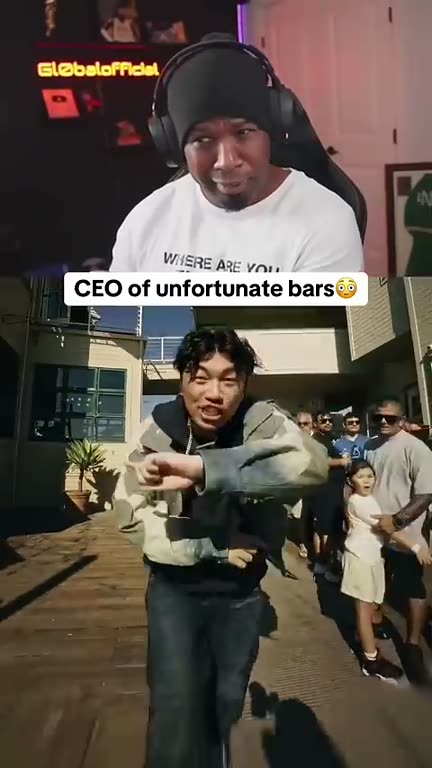
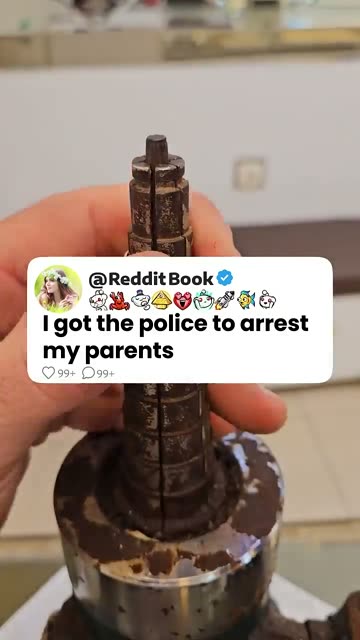
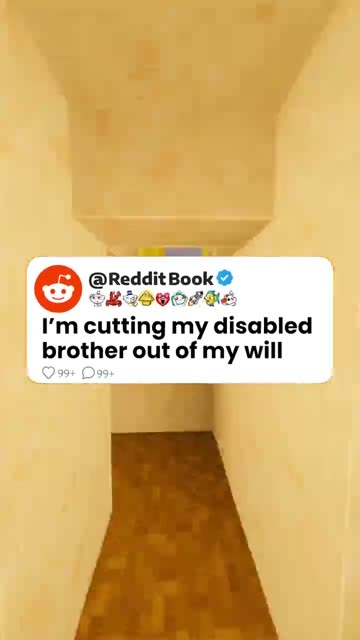
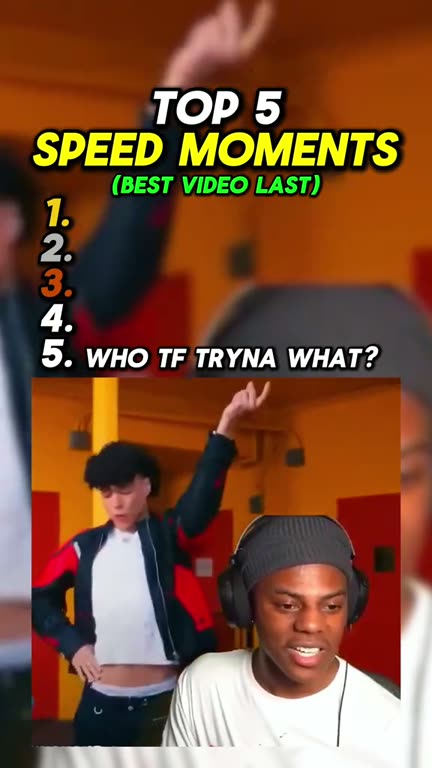
Real captioned videos made with GhostShorts
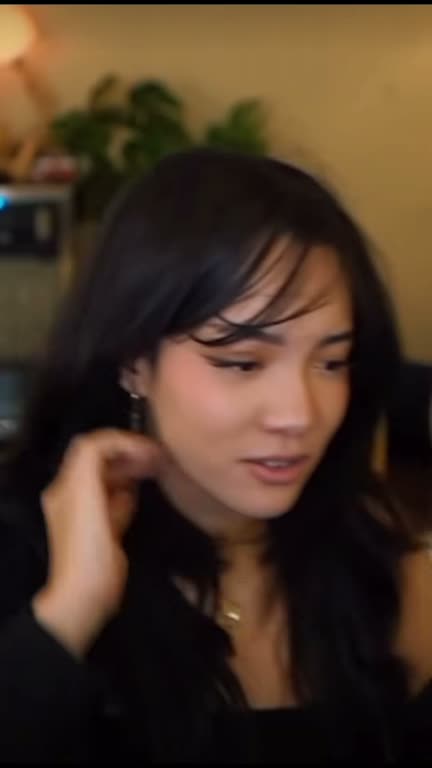
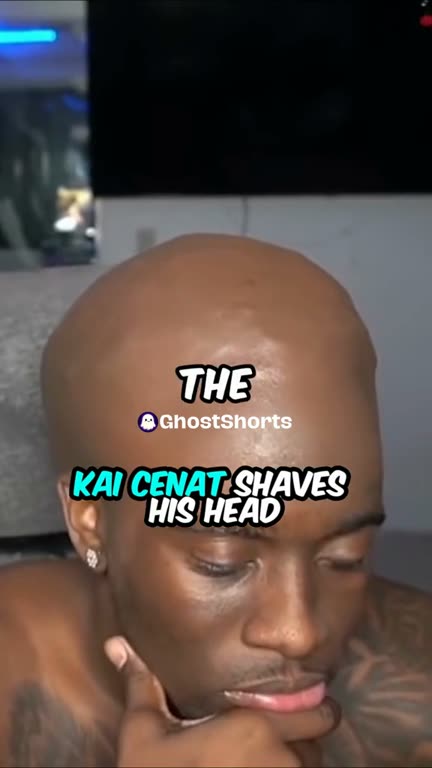
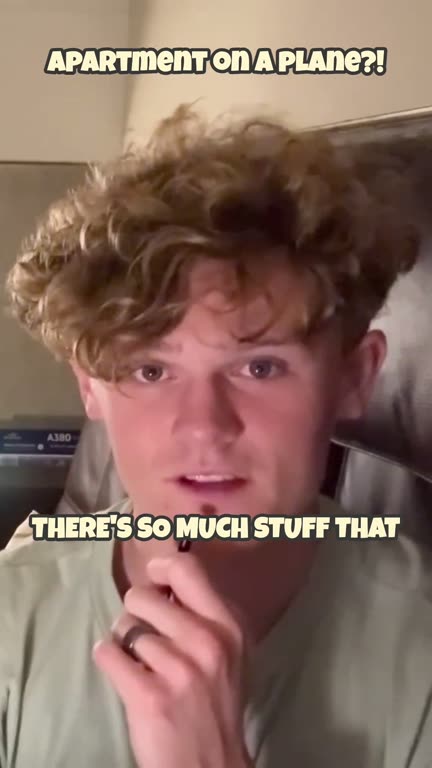
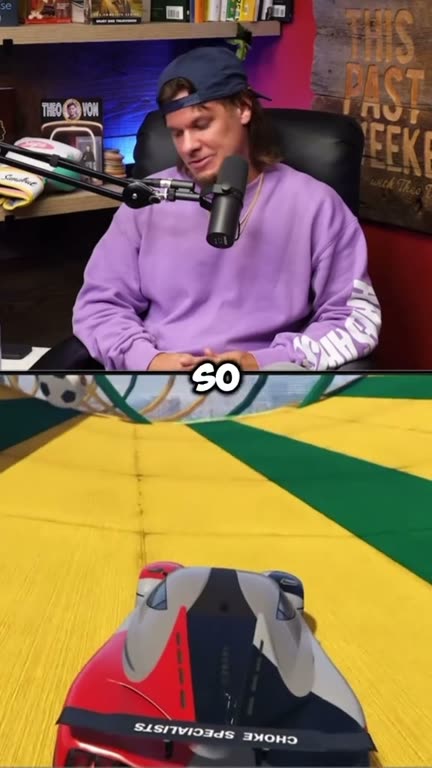
Three videos our creators captioned, and the trick behind each one.
| Style family | GhostShorts presets | Works best for |
|---|---|---|
| Bold uppercase with a popping highlight word | Hormozi (the default), Beast, Devin, Nick, Doug, Carlos | Podcast clips, business and motivation content, hot takes, anything fast-paced |
| Clean sentence case with a soft fade | Ali, Iman | Interviews, tutorials, educational clips, calm vlogs and lifestyle content |
| Playful display fonts | Kendrick, Laura, William, Fire, Neon | Gaming, comedy, reactions, and anything that should feel loud and fun |
| Outlined, high-contrast text | Classic White, Matt, Luke, Leon | General use, and footage with busy or bright backgrounds where readability comes first |
The bold word-highlight look is the default for a reason: it is the style most viewers now associate with short-form clips, and it stays readable on a small screen. But you can switch any time. Pick a style in the editor, watch the preview update, and keep the one that fits the tone of your clip.
Who uses auto captions, and for what
Podcasters
Clips of a long talk need words on screen to work on mute.
- The one line everyone quotes
- A guest story
- A hot take
Streamers and clippers
Fast reactions are easy to miss without text.
- Reaction moments
- Stream highlights
- Funny exchanges
Educators
Reading and listening together makes a lesson stick.
- Quick tutorials
- Explainers
- Exam tips
Marketers
Ads scroll past in a second; captions carry the offer.
- Product demos
- Testimonials
- Short ads
Small businesses
Talking-head videos from the owner, made watchable.
- Real estate tours
- Coaching tips
- Behind the scenes
Vloggers
Viewers follow the story even in a loud place.
- Travel clips
- Day-in-the-life
- Storytime
How to Add Captions to a Video with GhostShorts
Upload your video, let the app write and time the captions, pick a style, fix any word, then export. Click any screenshot to see it full size.
- FilesMP4, MOV or WebM, up to 8 minutes and 500MB
- Caption styles17 ready-made presets
- PositionTop, middle or bottom
- FramingFill the frame or fit the whole video
- EditingFix any word, or reset to the transcript
- LanguageDetected from the speech, no translation
- ExportVertical 9:16 MP4, captions built in
Burned-in captions vs caption tracks
There are two ways a caption can reach a viewer, and they behave differently.
Burned-in captions
What GhostShorts exports: part of the picture.
- Look the same on TikTok, Shorts, Reels and in a group chat
- Cannot be switched off by accident
- Search engines cannot read them as text
Caption tracks (SRT)
A separate text file, or the platform’s own captions.
- Viewers can turn them on and off
- YouTube can read the text
- The look is whatever each platform offers
Using both
- Burn in the look, add the textBurned-in captions are the norm on short-form. If YouTube search matters to you, also add a caption track or keywords in the title and description.
- Captions are accessibilityThey make your videos usable for people who are deaf or hard of hearing, and for anyone watching in a second language or a loud place.
Are Auto Captions Accurate?
Automatic transcription is very good on clear speech. Names, brand terms, slang and numbers are where mistakes happen, and a wrong word in those spots can change the meaning.
Where mistakes happen
The words transcription finds hardest.
- Names and brand terms
- Slang and made-up words
- Numbers and amounts
How to fix them
In the app, before you export.
- Open the Words tab and read it through
- Edit any line and save
- Reset to the original transcript if needed
Manual captioning vs GhostShorts
Many creators start with manual tools: typing an SRT file, using a phone editor's caption feature, or building subtitles in desktop editing software. Those methods work, but the work grows with every video. Here is how the two approaches compare.
| Step | Manual captioning | GhostShorts Auto Captions |
|---|---|---|
| Transcription | Type every word while pausing and rewinding the audio | The audio is transcribed automatically after upload |
| Timing | Set a start and end point for every line by hand | Each word is timed from the transcript, so highlights follow the speaker |
| Styling | Build a look from scratch, then recreate it for the next video | 17 ready-made styles you can swap at any time |
| Animation | Static text unless you keyframe each word yourself | Word highlights and caption animations are part of every preset |
| Fixing mistakes | Find the segment, retype it, re-render the project | Edit the line in the Words tab and save, or reset to the original transcript |
| Output | Depends on your export settings and the platform | A vertical 9:16 MP4 with captions built in, ready to post |
The difference adds up when you post every day. Captioning stops being a chore you do at the end of every edit and becomes one step of a few clicks.
Tips for captions people actually read
Adding captions is step one. A few habits make them work harder for your watch time.
Proofread names, numbers and slang
These are the words transcription is most likely to get wrong, and the ones viewers notice first. Read the caption list once before exporting and fix anything that looks off.
Keep the speaker's face clear
Viewers look at faces for emotion. On talking-head clips, move captions to the top or bottom so they never cover the speaker's eyes or mouth.
Choose contrast over decoration
Captions have to stay readable over whatever is happening behind them. On bright or busy footage, pick a preset with a heavy outline and shadow.
Match the style to the tone
Loud uppercase highlights suit hype, gaming and motivation. Softer sentence-case styles suit interviews and calm explainers. A mismatch makes the clip feel off, even if viewers cannot say why.
Check it on your phone
Most people will watch your clip on a phone at arm's length. Watch the export the same way before posting. If you have to squint, so will they.
Test two styles on similar content
The best style varies by niche and audience. Try two different presets on comparable clips and compare retention in your analytics after a couple of days.
Making more than captions? The same caption styles appear across other GhostShorts formats, like Reddit story videos and split-screen videos.